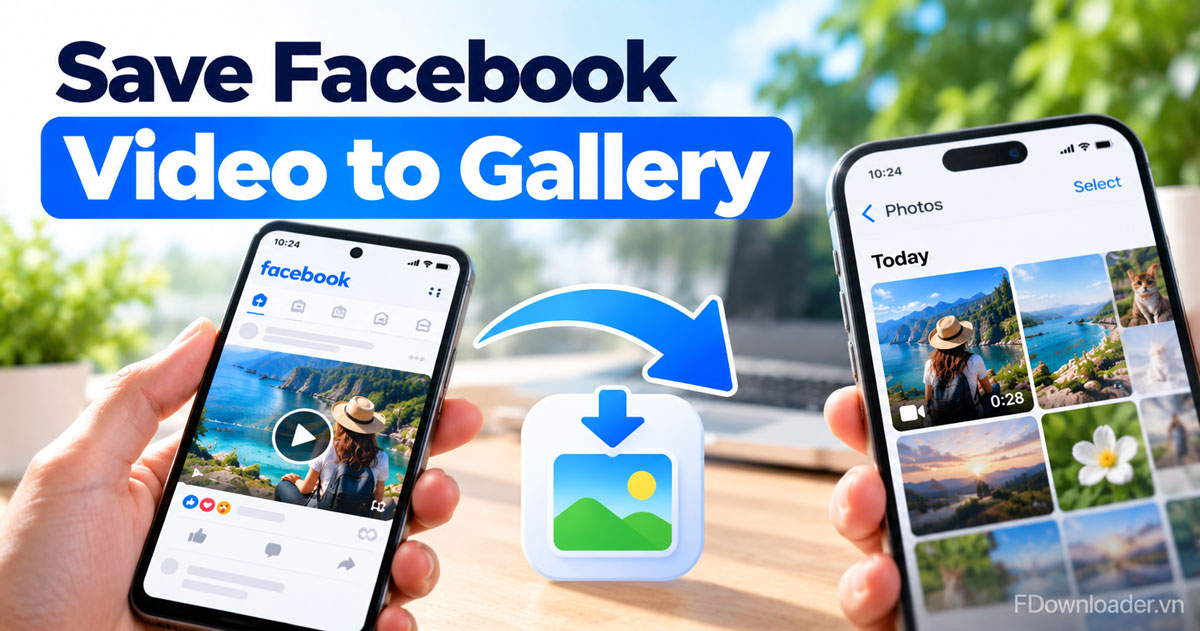
You save a Facebook video to your gallery by downloading it as a file: copy the video link, paste it into a Facebook video downloader like FDownloader.vn and pick a quality. On Android the MP4 lands in Downloads, which most galleries show; on iPhone it lands in Files, and one tap moves it into Photos.
Specifically, the Save button inside Facebook does not do this job. It only adds the post to your Saved list in the app, so the clip still needs the internet and disappears if the owner deletes it. A real file on your phone stays put, plays offline and can be shared like any video you filmed yourself.
In addition, where the file ends up depends on your phone, not on Facebook. Android browsers put new files in the Downloads folder, which you open through the Files app and which many gallery apps scan. Safari on iPhone saves downloads to the Files app first, and the Photos app only gets the clip after you choose Save Video.
Next, this guide walks through the download itself, then shows exactly where to look on Android and on iPhone, and what to do when the saved video does not show up in your gallery. A short section at the end covers private videos and the quality of the copy you keep.
Can you save a Facebook video to your gallery?
Yes, you can save a Facebook video to your gallery, because the video can be downloaded by its link, the file is a standard MP4, and both Android and iPhone let you move downloads into the photo library.
To understand why people get stuck here, it helps to separate the two kinds of "saving" that Facebook users run into.
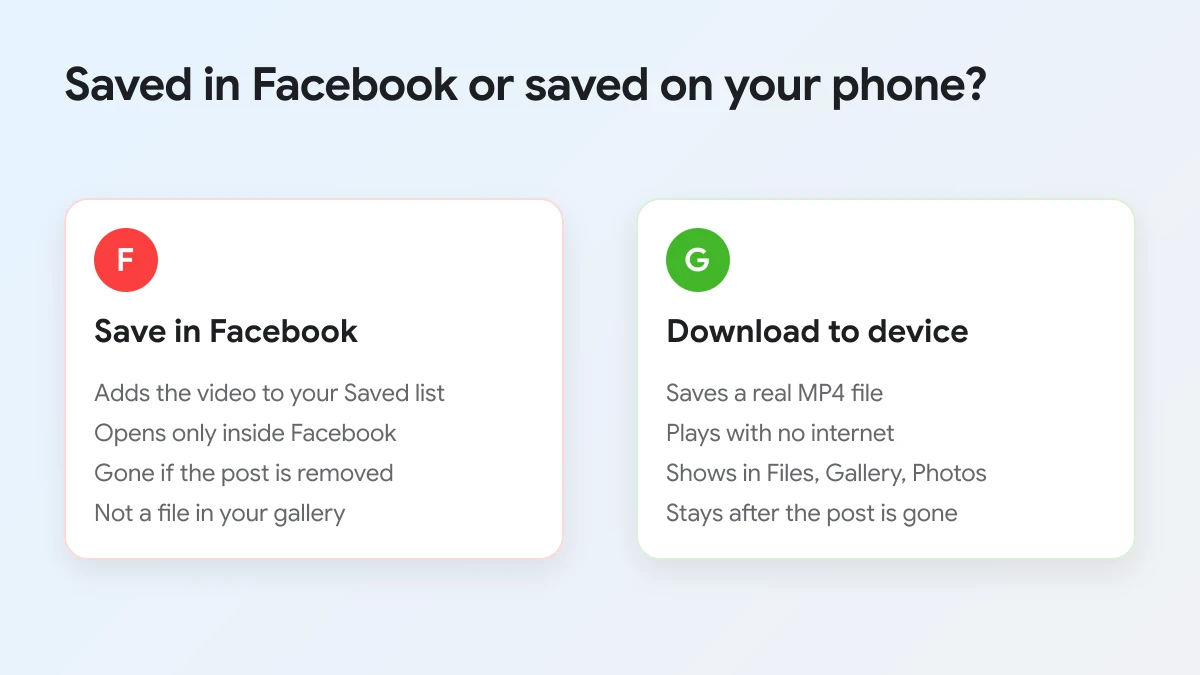
The first kind is the Save option in the Facebook menu. Facebook describes it as a way to keep reels and videos so you can watch them at another time. The video goes into your Saved list inside Facebook, not into your gallery. You cannot open it in another app, and it stops playing if the owner deletes the post or changes who can see it.
The second kind is a download, which creates a file on your device. Facebook itself offers this only in narrow cases. Its Help Center explains that you can download reels you created and posted yourself from the mobile app, and that older videos keep the download options they had before. For a clip someone else posted, there is usually no download button at all.
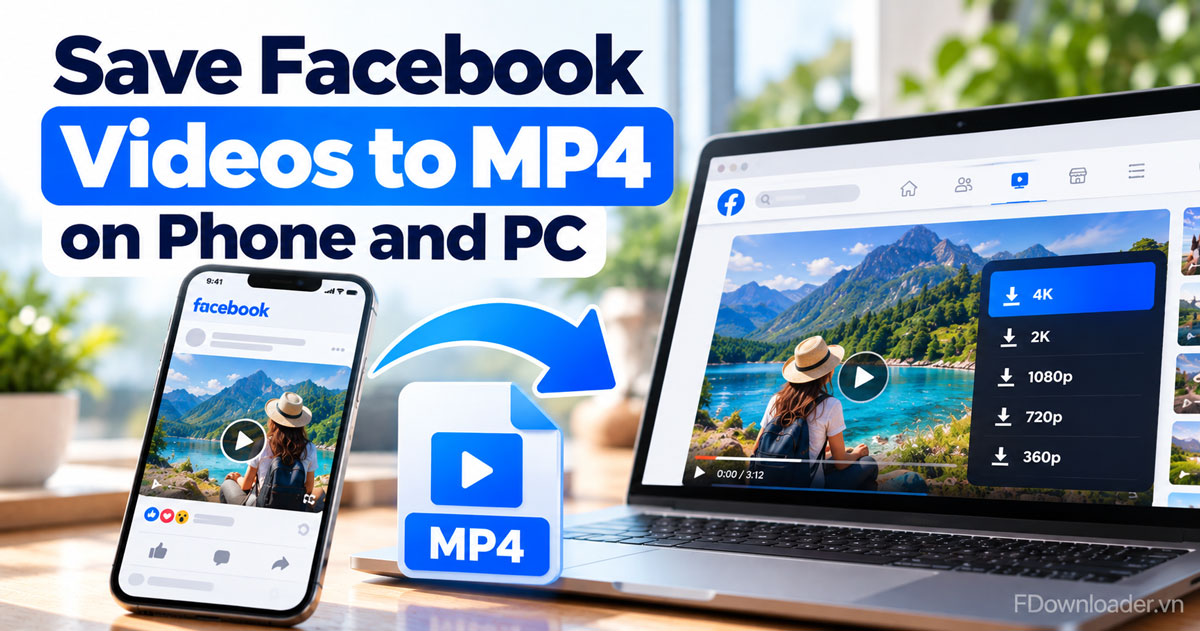
That is where a link based tool fills the gap. FDownloader.vn reads the public video behind the link you paste and lists the qualities the original upload has, from 360p up to Full HD 1080p, and 2K or 4K when the uploader recorded them. You save the file as MP4, and from there it behaves like any other video on your phone. The service is free, needs no sign-up or Facebook login, sets no download limit and adds no watermark.
Most public video types on Facebook can be saved this way:
- Regular videos posted on a profile or a Page, including the ones you find in the Watch or Video tab.
- Reels, the short vertical clips with music or voice over.
- Videos in public groups, which anyone can open without joining.
- Finished livestreams, once the broadcast has ended and the replay is posted.
What all of these have in common is that you can open them without special permission. If a video is shared only with friends or inside a closed group, the link alone is not enough, and the last part of this guide explains the method for those. In every case, keep in mind that the clip belongs to the person who posted it: save it to watch offline or to keep a memory, not to post it again as your own.
How do you save a Facebook video to your phone gallery?
You save a Facebook video to your phone gallery in 3 steps: copy the link in the Facebook app, paste it into FDownloader.vn and press Download, then choose a quality so the MP4 saves to your phone.
To begin, open the video you want in the Facebook app. The steps below are the same on Android and iPhone; only the place the file lands is different, and the next two sections cover that.
Copy the video link in the Facebook app
The video link tells the downloader which clip to fetch. Open the video so it plays, tap Share, then tap Copy link. The address is now on your clipboard, even though nothing visible happens on screen.
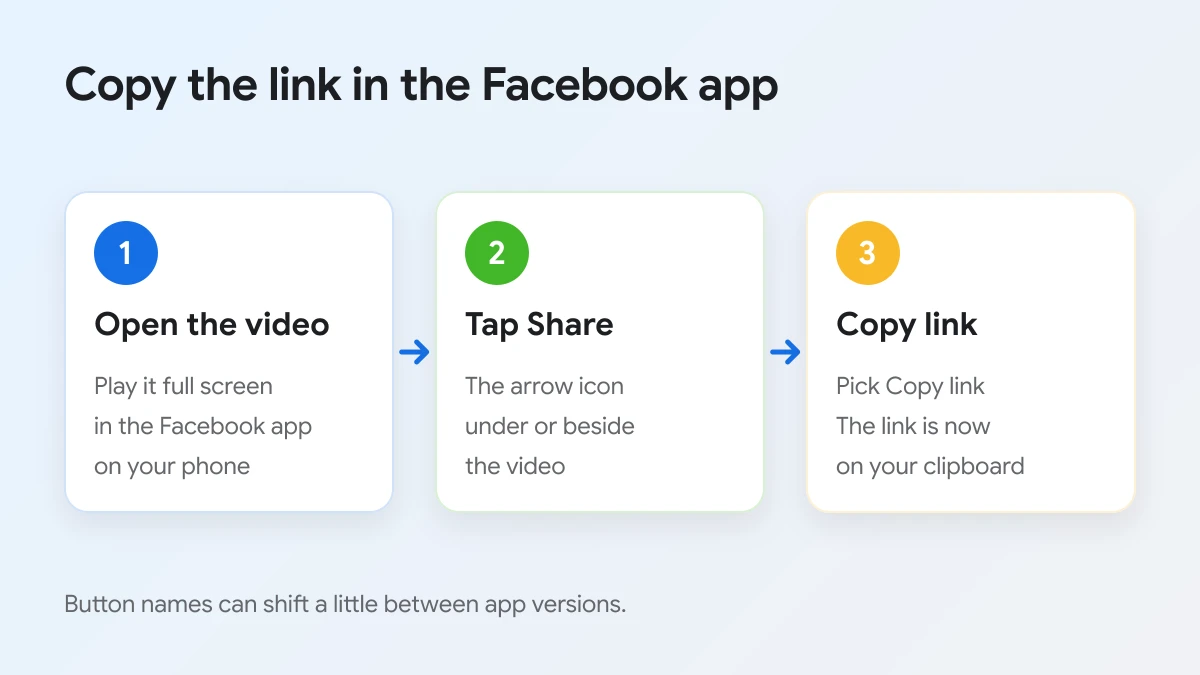
On some videos and app versions the Share button sits under the video, on others it is on the right side next to the like and comment icons. If you cannot find it, the menu with three dots on the post often has a Copy link option too. Reels, page videos and videos in public groups all give you a link that works.
If you watch Facebook in a phone browser instead of the app, you can copy the address of the video page from the address bar instead. Either way, the link should start with https:// and contain facebook.com or fb.watch. Paste it somewhere you can read it, such as the search box of your browser, if you are not sure the copy worked.
Paste it into FDownloader.vn and press Download
Next, open your phone's browser, go to FDownloader.vn and tap the Paste button inside the box that says "Paste your Facebook video link here...". Once the link is in, the button changes to Clear. Tap the blue Download button below the box.
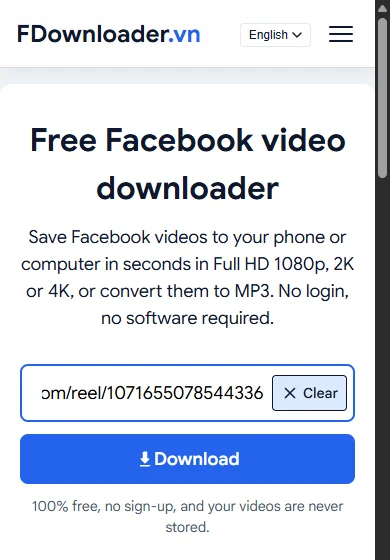
If the browser asks for permission to read your clipboard when you tap Paste, allow it, or long press inside the box and choose Paste instead. The server uses only that link to fetch the original video file, and it does not keep the video afterwards.
Choose a quality and save the file
After a few seconds, the page lists every quality the video has. For a phone gallery, 720P (HD) is the most practical choice: it is sharp on a phone screen and its green Download now button saves the file at once.
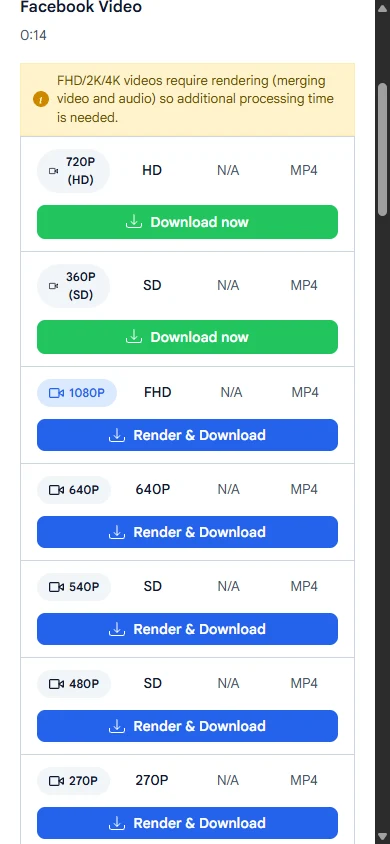
For the sharpest copy, tap Render & Download on 1080P, or on 2K or 4K if those rows appear. A progress bar runs while the server merges picture and sound; when it ends, a green Download now button appears and you tap it to save the MP4. Keep the browser tab open until then. If you want to know how the MP4 format and quality rows work in more depth, a separate guide explains each row.
Avoid the MP3 rows at the bottom of the list for this job. They save only the sound, so your gallery will not show them as videos.
Where does a downloaded Facebook video go on Android?
A downloaded Facebook video on Android goes to the Downloads folder in internal storage, which you open through the Files app; most gallery apps also list videos from Downloads, so the clip usually appears there quickly.
To find it reliably, follow the file from the browser to the gallery in the order below.
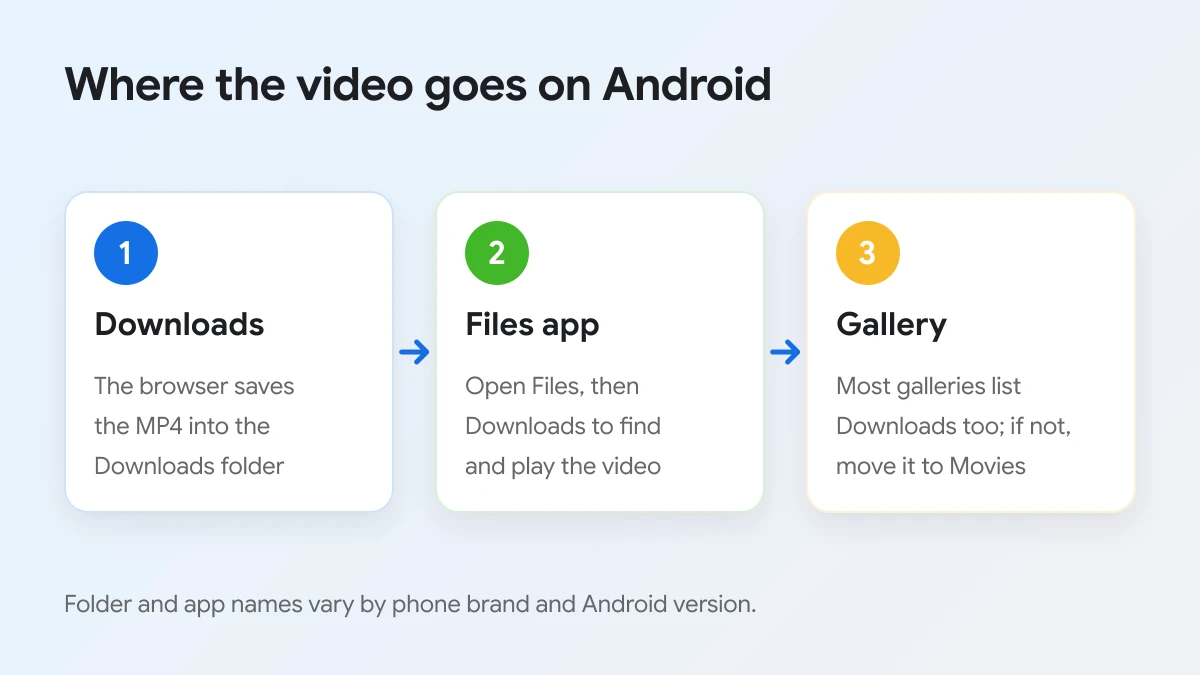
- Check the browser notice. When the MP4 finishes, Chrome and most other Android browsers show a small bar or notification with an Open button. Tapping it plays the video at once.
- Open the Files app. Google's Files app, or the file manager your phone maker installs, has a Downloads entry. Tap it, and the newest file is usually at the top. Google's Android Help also describes using the Files app's categories and sorting by date to find recent files.
- Open the gallery. Samsung Gallery, Google Photos and most other gallery apps show videos from the Downloads folder, often in an album named Download or Downloads. In Google Photos, look among the folders saved on this device.
Names differ between brands. Some phones call the app My Files instead of Files, and the album name can change with the gallery app. The video is the same file in every case, saved as a normal .mp4.
If your gallery does not show the Downloads album, you can move the file into a folder it always scans:
- In the Files app, touch and hold the video, then choose the Move option.
- Pick the Movies or DCIM folder in internal storage.
- Confirm the move, then open the gallery again.
Moving the file does not change its quality. It only changes the folder, which is what the gallery app looks at.
Cloud backup is worth a quick look too. Gallery apps with backup often upload only the camera folder by default, so a video sitting in Downloads may stay on the phone only. If you want the Facebook clip backed up with your other videos, either turn on backup for the Downloads folder in your gallery settings or move the file into DCIM, which most backup tools already include. Once it is in the gallery, you can trim it, add it to an album or share it in a chat like any clip you recorded yourself.
How do you get a Facebook video into Photos on iPhone?
You get a Facebook video into Photos on iPhone in 3 steps: download the MP4 in Safari, open it from the Downloads folder in the Files app, then tap Share and Save Video to add it to your camera roll.
To see why there are two stops, remember that Safari treats every download as a file, and files live in the Files app. The Photos app only holds what you add to it.
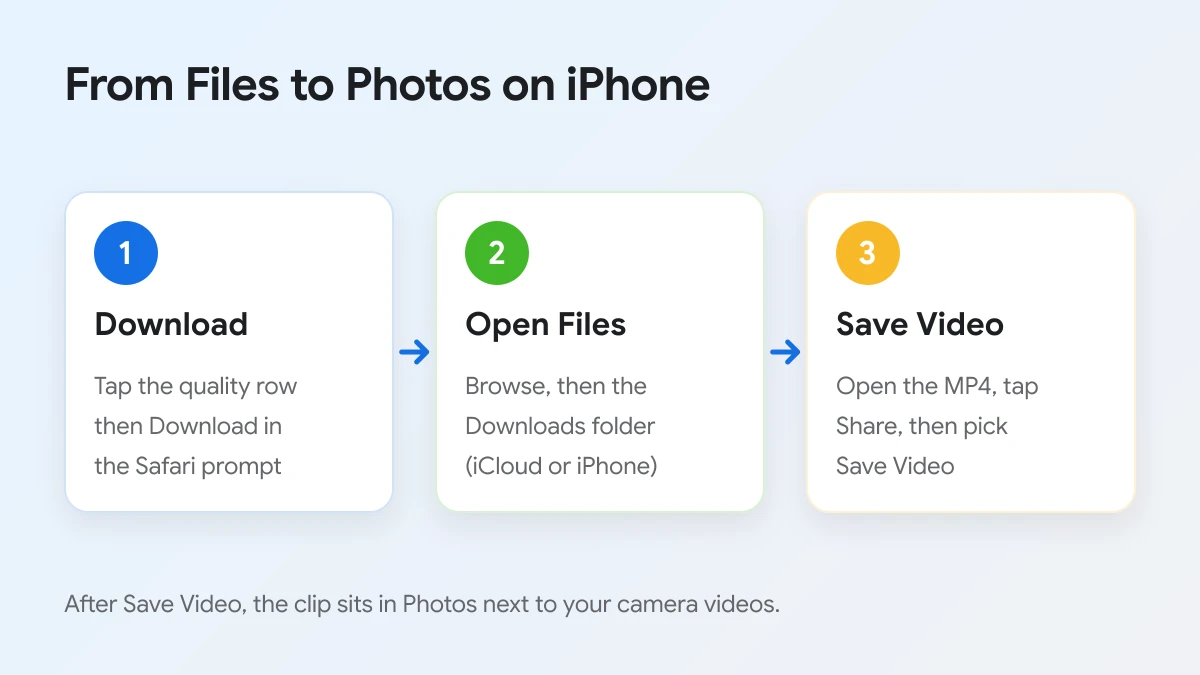
Download the MP4 in Safari
After you tap a quality row on FDownloader.vn, Safari shows a prompt asking whether you want to download the file. Tap Download. A downloads icon appears next to the address field, and tapping it lists your recent downloads. Chrome on iPhone works too and shows its own prompt.
Find it in the Files app
Open the blue Files app, tap Browse and open the Downloads folder. Apple Support lists this path under iCloud Drive. Safari can also be set to save downloads in a Downloads folder On My iPhone instead; that choice sits in Settings, under Safari, then Downloads. If you do not see the video in one place, check the other.
The two locations behave a little differently. A download in iCloud Drive can be opened from your other Apple devices signed in to the same Apple Account, but it also uses iCloud storage. A download On My iPhone stays on the phone and uses only local space. For large 1080P or 4K clips that you plan to move into Photos anyway, saving On My iPhone avoids filling your iCloud storage twice.
Save it to Photos
Tap the video to open it in Files, tap the Share button and choose Save Video. The clip now appears in the Photos app with your other videos, and from there it can sync to iCloud Photos, be trimmed in the editor or be shared in any app. Once it is in Photos, you can delete the copy in Files to free up space.
Some users prefer to keep videos in Files and skip Photos entirely, which is fine for clips you only want to watch offline. For a full walkthrough for Facebook videos on iPhone, a separate guide goes through every screen in Safari and Chrome.
Why is the saved Facebook video not showing in your gallery?
A saved Facebook video is usually missing from the gallery for four reasons: the download never finished, the file is still in Files or Downloads, the gallery skips that folder, or an MP3 row was chosen instead of MP4.
To fix it quickly, match what you see on your phone with the likely cause in the table below.
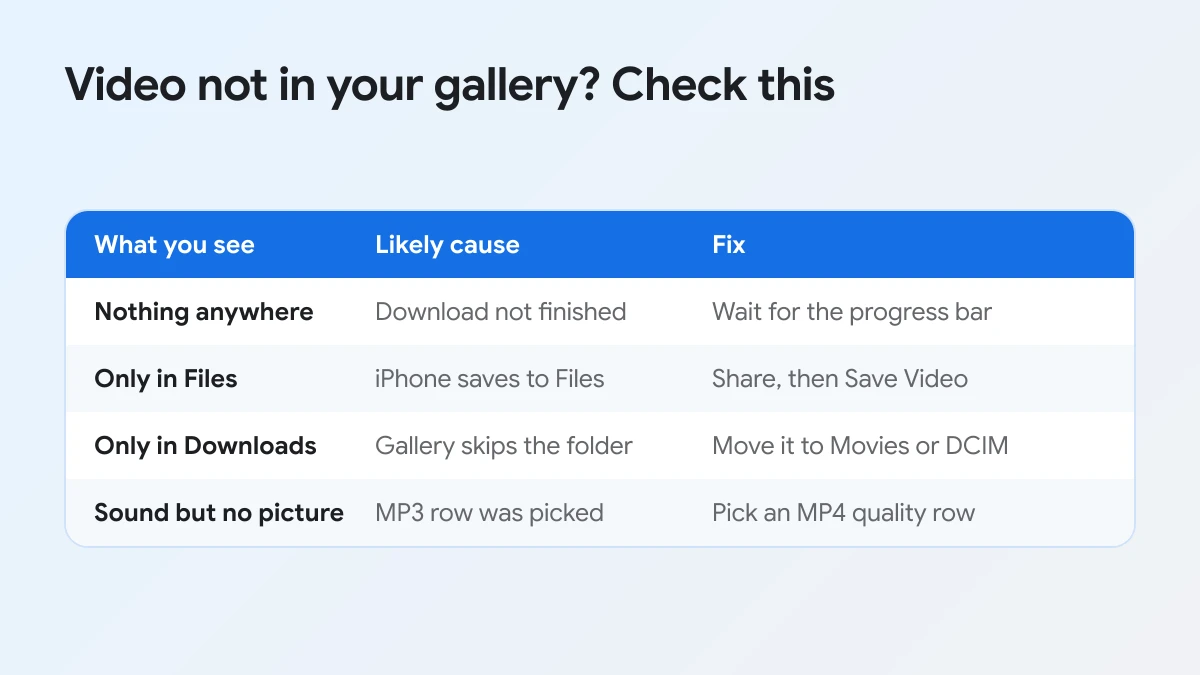
The table above is a quick check; each cause is explained below.
The download did not finish
Render & Download rows need the tab to stay open until the progress bar completes and the green Download now button appears. If you switched apps or locked the phone too early, the file may never have saved. Go back to the page, tap the same row again and wait for the button. On a slow connection, the 720P Download now row is the faster option. You can also open the download list of your browser: on Android it sits in the browser menu under Downloads, and in Safari it is the downloads icon next to the address field. A file that shows as paused or failed there simply needs to be downloaded again.
The file is in Files or Downloads, not in the gallery
On iPhone, every download stops in the Files app until you choose Save Video, so an empty Photos app is normal at that point. On Android, the file is in Downloads; if the gallery hides that album, move the video to Movies or DCIM as shown earlier.
The wrong row was chosen
MP3 rows save sound only, so a music app may pick them up while the gallery ignores them. If you hear audio but see no picture, go back and choose a video row marked MP4.
Other things to check
- Storage is full. A long 1080P or 4K video can be large. Free some space and try again.
- The link was not public. If the page says the video is private, use the private method in the next section.
- The gallery needs a refresh. Close the gallery app fully and reopen it, or restart the phone if the video still does not appear.
When none of these help, copy the link again from Facebook. A link cut off in the middle, or a line of text copied with it, can make the tool return "Invalid link." instead of a quality list.
What else should you know before saving Facebook videos to your gallery?
Two things matter most: private and group videos need a different method on a computer, and the copy in your gallery keeps the quality of the row you picked, not more.
Can you save private or group videos to your gallery?
Yes, with an extra step on a computer. Videos set to Friends, Only me or a closed group cannot be fetched from the link alone, so the tool shows a message pointing to its private downloader. On that page you can download private Facebook videos by copying the page source from a browser on Windows or Mac that is already logged in to an account allowed to watch the clip. Your Facebook password is never entered on FDownloader.vn. This method is not supported on phones yet, so download on the computer, then send the MP4 to your phone by cable, cloud drive or AirDrop.
Does the gallery copy keep the original quality?
Yes, it keeps the quality of the row you saved. A 1080P download stays 1080P in the gallery, and moving it between folders does not compress it. Only the original upload sets the ceiling: if Facebook has the video in 720P at most, no row will offer more. Please keep saved videos for personal viewing and ask the owner before posting them again.