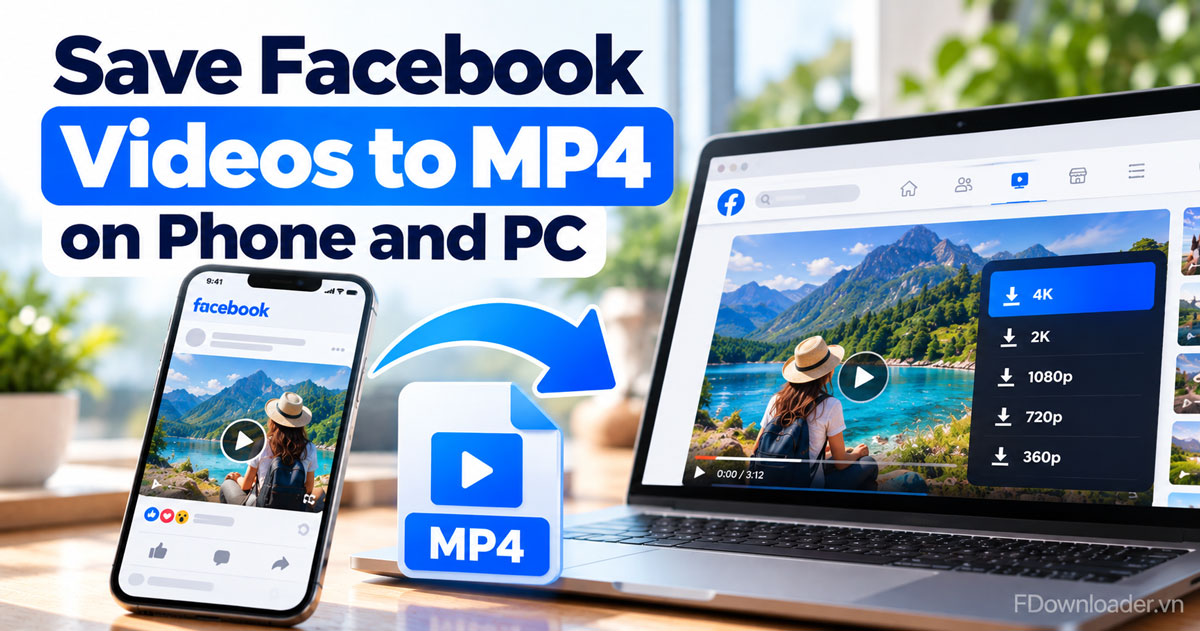
You turn a Facebook video into an MP4 by saving it from its link: copy the link of the video, paste it into a Facebook video downloader such as FDownloader.vn, press Download and pick a quality. The file that lands on your phone or computer is already an MP4, ready to play offline.
Specifically, there is no separate conversion step to worry about. The quality rows that FDownloader.vn lists for a Facebook video carry the label MP4 in the format column, so saving the video and getting an MP4 are the same action. You do not install a converter, you do not sign in to Facebook, and nothing is added to the picture.
In addition, the quality you get depends on the original upload. FDownloader.vn shows every quality the Facebook video was posted in, from 360p up to Full HD 1080p, and 2K or 4K when the person who uploaded it used a camera that recorded them. Lower rows save at once, while higher rows go through a short render first.
Below, you will find the three steps in detail, what the MP4 file really contains, how to choose between Download now and Render & Download, where the file ends up on Android, iPhone and PC, and when MP3 makes more sense than MP4. The last part covers the most common reasons a video refuses to save.
How do you turn a Facebook video into an MP4 file?
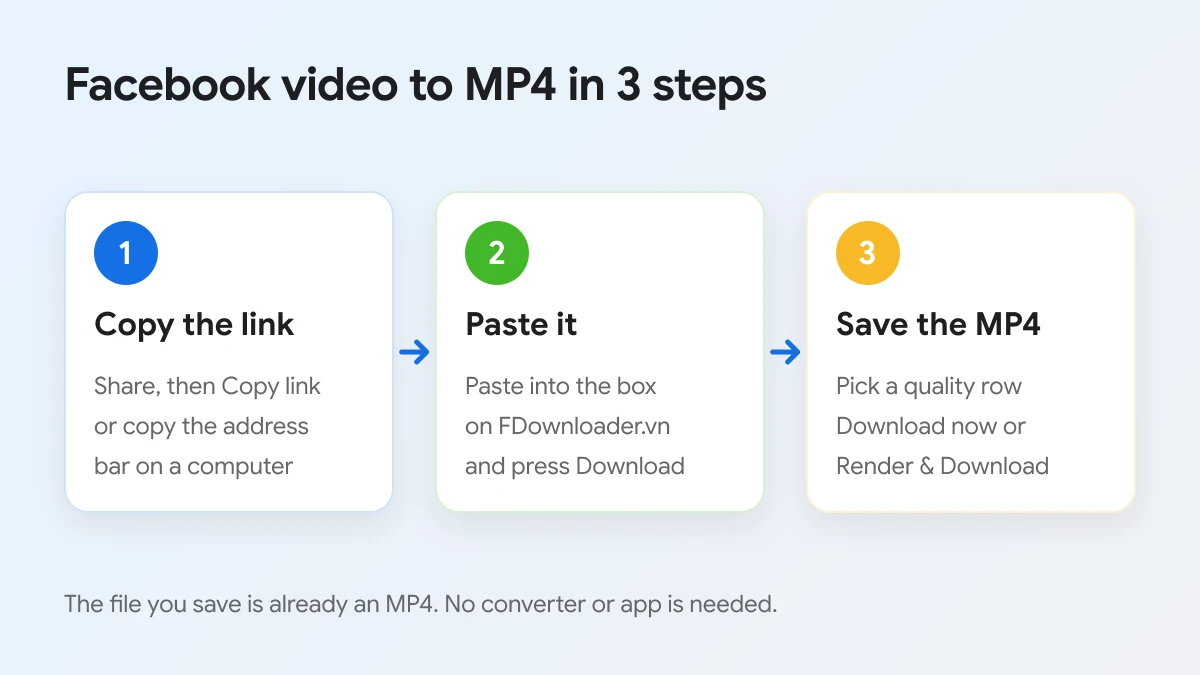
You turn a Facebook video into an MP4 file in 3 steps: copy the video link, paste it into FDownloader.vn and press Download, then pick a quality row to save the MP4 to your device.
To start, here is the whole process on one picture, followed by what to do in each step on a phone and on a computer.
Step 1. Copy the Facebook video link
The first step is to copy the address of the video, because the link is the only thing the downloader needs from you. In the Facebook app, open the video, tap Share and choose Copy link. On a computer, open the video so that it plays on its own page, then copy the address from the browser address bar.
Facebook links come in several shapes, and all of them work:
- Watch links such as facebook.com/watch/?v= followed by a number.
- Page or profile video links that contain /videos/ followed by a number.
- Reel links that contain /reel/ followed by a number.
- Short share links such as fb.watch or facebook.com/share/v/, which the app gives you when you tap Copy link.
If you copied the link from a chat message, check that only the address was copied. A line of text in front of https:// can make the tool reject the link as invalid.
Step 2. Paste the link and press Download
Next, open FDownloader.vn in any browser and paste the link into the box that reads "Paste your Facebook video link here...". On a phone, the Paste button inside the box fills it in one tap; once the link is in, that button turns into Clear so you can start over. Then press the blue Download button.
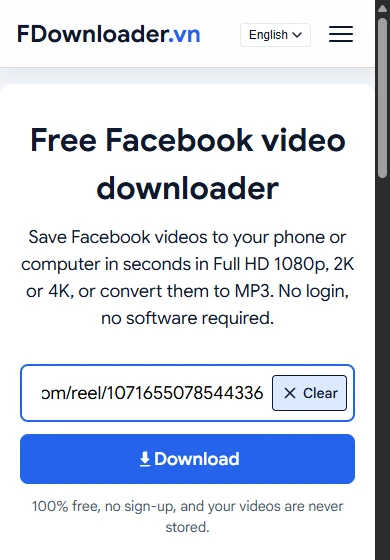
Under the button you will see the line "100% free, no sign-up, and your videos are never stored." That sums up how the service works. The server only uses the link you paste to fetch the original video file from Facebook and hand it to you. It does not keep a copy of the video, and it never asks for your Facebook password.
Step 3. Pick a quality and save the MP4
After a few seconds, a result card titled "Facebook Video" appears with the length of the clip and a list of quality rows. Each row shows the resolution, a short label such as HD, SD or FHD, the file size when it is known, and the format, which reads MP4 for every video row.
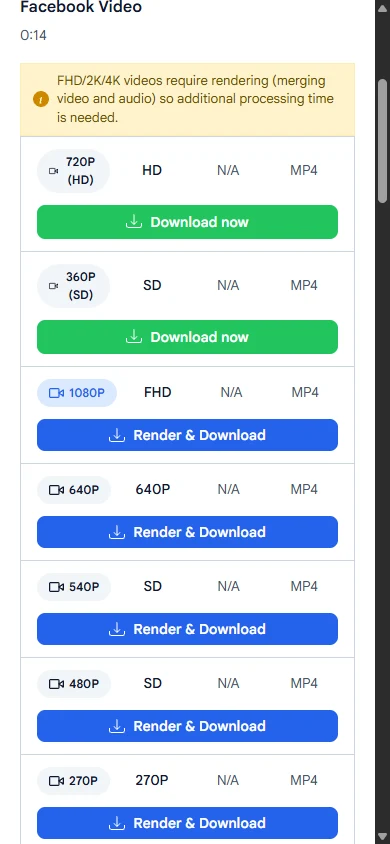
Tap the button on the row you want. A green Download now button saves the file straight away. A blue Render & Download button first shows a progress bar; when it reaches the end, the button changes into Download now and you tap it to save the MP4. When you are finished, the link "Download another Facebook video" at the bottom of the list clears the page for the next clip.
There is no daily cap on how many videos you save this way, one link after another, and the tool adds no watermark or logo of its own to the file. If you are still deciding whether a downloader app is worth installing for this job, these three steps are the whole process in a browser.
Is the file you download from Facebook already an MP4?
Yes, the file you save from FDownloader.vn is already an MP4, for three reasons: every video row lists MP4 as its format, the higher qualities are merged into an MP4 container during render, and no second converter runs afterwards.
To see this for yourself, look at the format column on a computer, where the whole list fits on one screen.
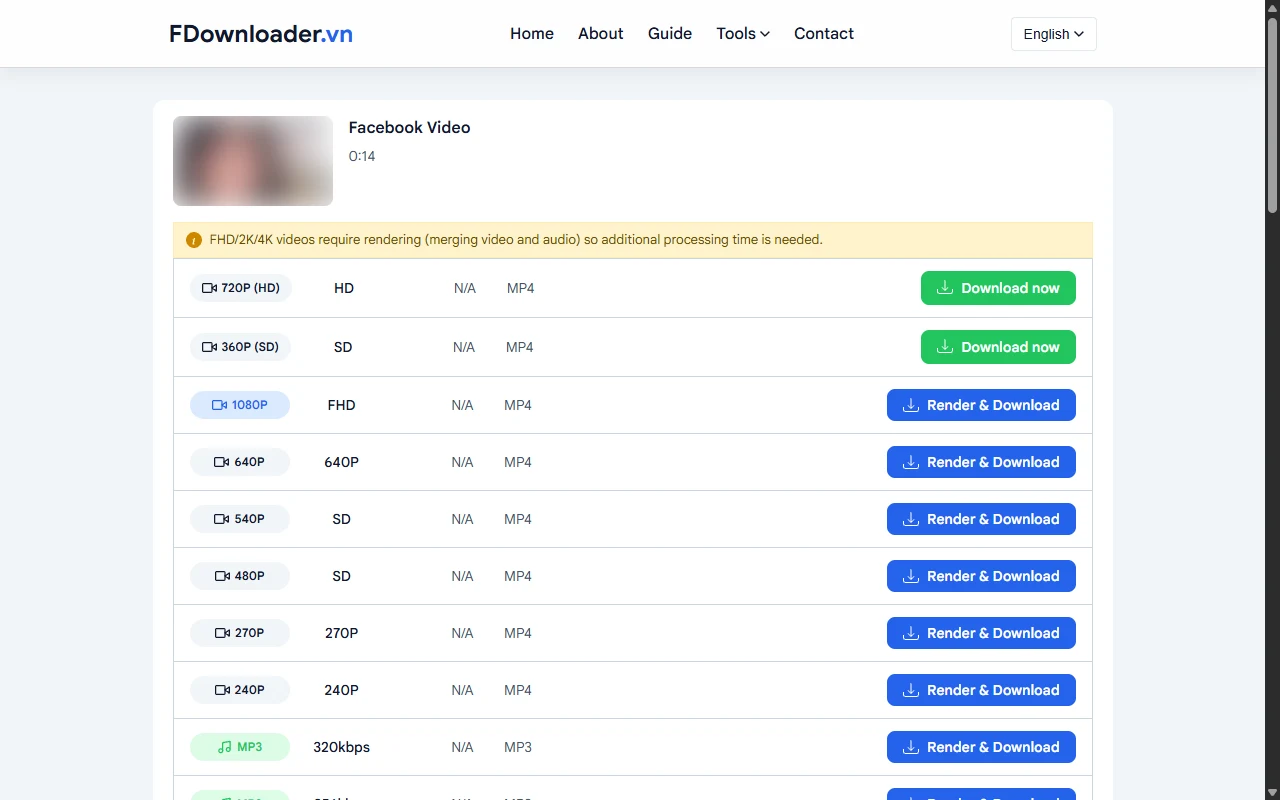
The most important reason is the format column itself. Every row from 720P down to 240P is marked MP4, and only the audio rows at the bottom are marked MP3. Whatever video row you choose, the saved file ends in .mp4.
In addition, the renamed file does not hide another format inside. When you tap a Render & Download row, the server joins the picture and the sound into one MP4 file before handing it to you, so the result opens in the same players as any other MP4.
This matters because many guides tell you to download first and convert later. With a Facebook video, that second step only costs time and can lower the quality, since every extra encode throws away a little detail. Saving directly to MP4 keeps the file as close to the original upload as the quality row allows.
A quick way to confirm the format after saving:
- On Android, open the Files app, long press the video and look at its details; the name ends in .mp4.
- On iPhone, touch and hold the file in the Files app and tap Get Info to see its kind.
- On Windows or Mac, look at the file name in the Downloads folder, or open its properties.
What does MP4 mean for a Facebook video?
MP4 is a container file format, defined as MPEG-4 Part 14 in the ISO/IEC 14496-14 standard, that stores a video track and an audio track together in one file with the .mp4 extension.
To put that in context, the word container explains why MP4 is so handy for saved Facebook clips.
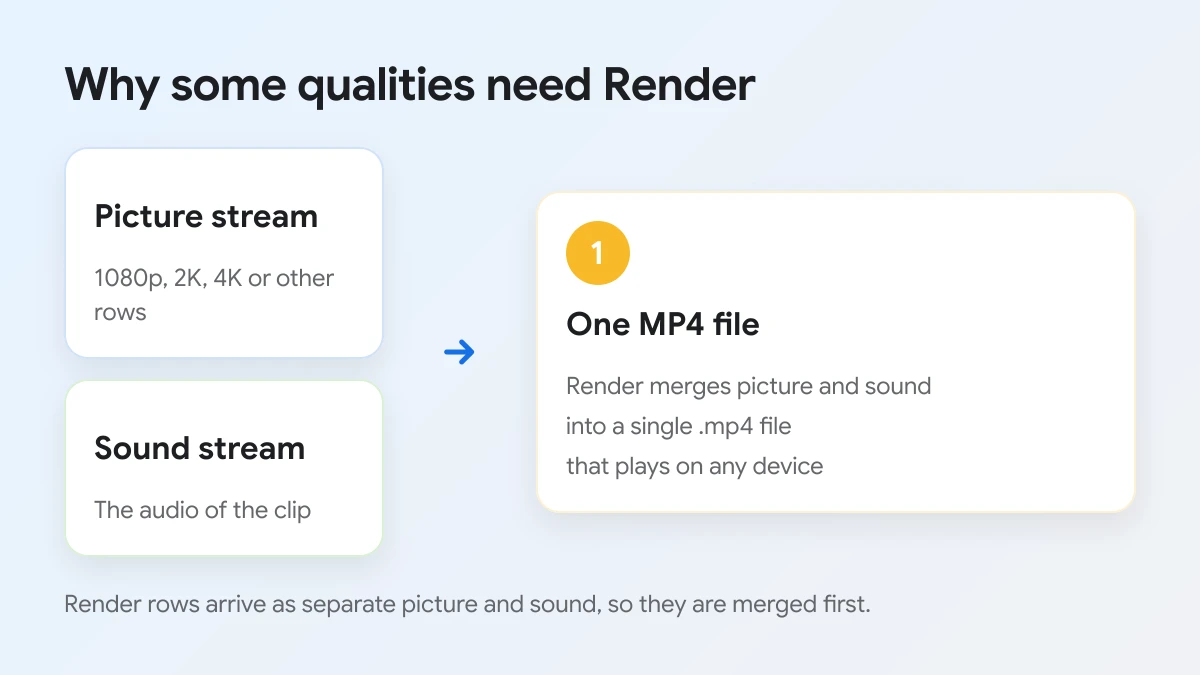
A container is like a box with labelled compartments. One compartment holds the moving picture, usually compressed with the H.264 (AVC) codec, and another holds the sound, usually in AAC. The box keeps both in step, so the voice matches the lips when you play the clip. The Library of Congress format description notes that MP4 can carry video, audio or both, and that .mp4 is the extension for files that mix the two.
For a Facebook video, the container has three practical benefits:
- It plays almost everywhere. Android galleries, the iPhone Photos app, Windows and Mac players, smart TVs and video editors all open MP4 without extra software.
- It keeps the file size reasonable. H.264 video inside MP4 gives good quality for the space it takes, which matters on a phone with limited storage.
- It is easy to share. Messaging apps and cloud drives accept MP4 without asking you to change anything.
The container idea also explains the yellow note on the result card: "FHD/2K/4K videos require rendering (merging video and audio) so additional processing time is needed." For many uploads, Facebook keeps the higher quality picture and the sound as separate streams. Render is the step where FDownloader.vn places both streams into one MP4 box, which is why those rows take a little longer than the Download now rows.
Which MP4 quality should you pick: Download now or Render & Download?
Download now wins on speed, because 720P (HD) and 360P (SD) save at once; Render & Download wins on sharpness, because 1080P, 2K or 4K keep the most detail after a short merge; the lowest rows suit tight storage.
To choose well, think about where you will watch the clip and how much space you have. The table below sums up what each type of row does.
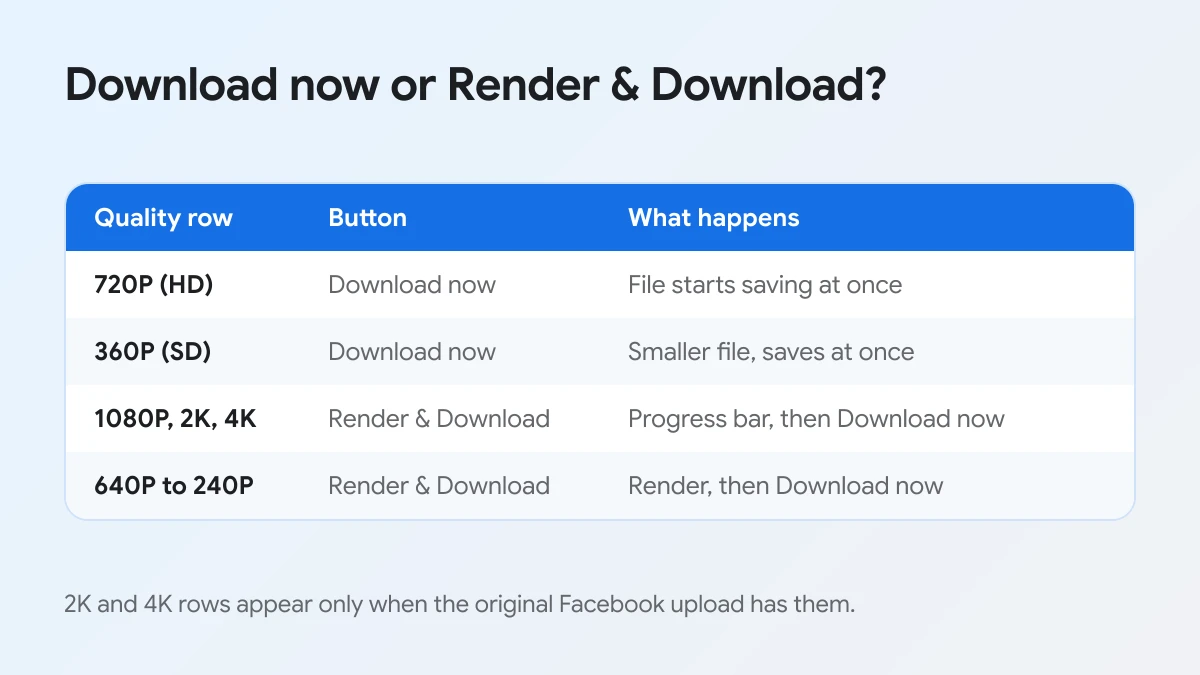
The rows a video shows depend on the upload. The sample in the screenshots is a short reel whose best quality is 1080P, so it has no 2K or 4K rows. A video filmed and posted in 4K would list those rows too, while an old or heavily compressed clip may only offer a couple of choices. FDownloader.vn cannot add quality that the original never had.
The following table compares the usual choices by what most people care about when they save a Facebook video as MP4.
| Need | Best row | Why |
|---|---|---|
| Watch on a phone, share in chat | 720P (HD) | Sharp on a phone screen, saves at once |
| Keep a copy for a TV or a laptop | 1080P or higher | Most detail, worth the short render |
| Edit the clip later | Highest row offered | Editing tools work best with more detail |
| Low storage or slow data | 360P (SD) or lower | Smallest files in the list |
Download now rows
The green Download now rows are usually 720P (HD) and 360P (SD). They already contain picture and sound together, so your browser starts saving the MP4 as soon as you tap. For most people watching on a phone, 720P is the sweet spot: it looks clean on a small screen and keeps the file size modest.
Render & Download rows
The blue Render & Download rows cover 1080P and, when available, 2K and 4K, plus in-between sizes such as 640P, 540P, 480P, 270P and 240P. After you tap, a progress bar fills while the server merges the streams. Stay on the page until it finishes and the green Download now button appears, then tap it. Longer and higher resolution videos take more time to render than short clips.
How does saving a Facebook video as MP4 differ on Android, iPhone and PC?
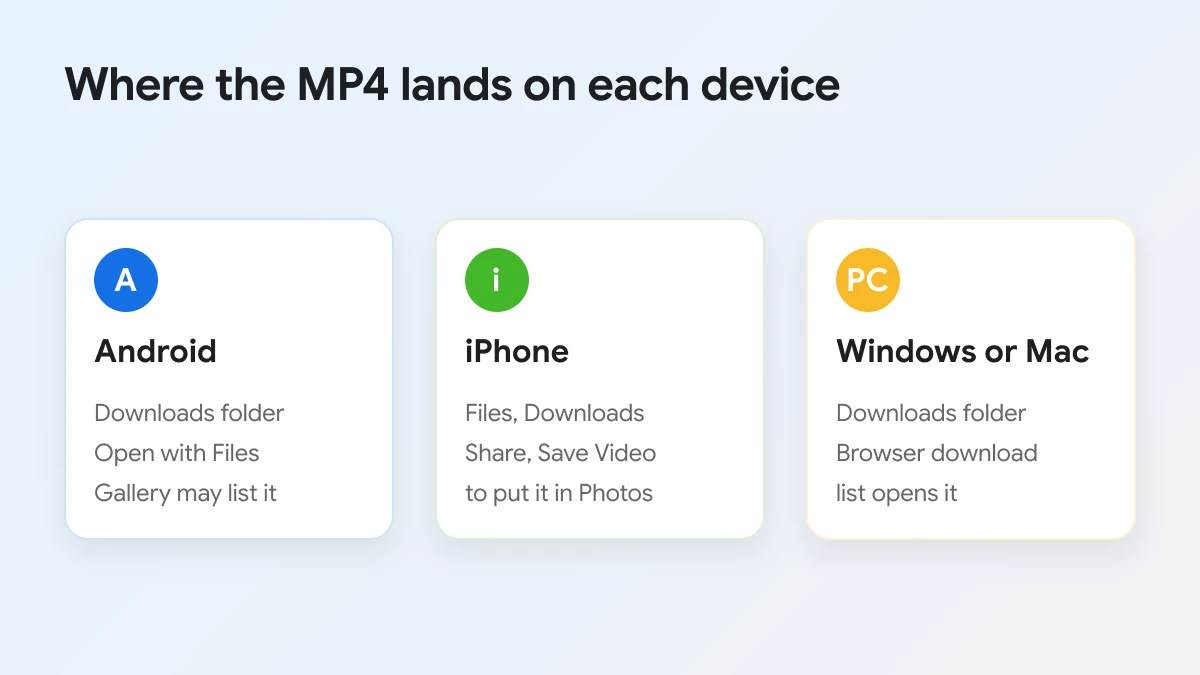
The three steps stay the same on every device; what changes is how you copy the link and where the MP4 lands: Downloads on Android, the Files app on iPhone, and the Downloads folder on Windows or Mac.
To make this concrete, here is where to look on each platform after you tap the download button.
On Android
Copy the link in the Facebook app with Share and Copy link, open Chrome or another browser, and paste it into FDownloader.vn. When the MP4 has saved, your browser shows a notice you can tap to open it. The file goes to the Downloads folder, which you can open in the Files app. Many gallery apps also list videos from Downloads; if yours does not, you can move the file into the Movies or DCIM folder.
On iPhone
Copy the link in the Facebook app, then open Safari and paste it. When you tap a quality row, Safari asks whether you want to download the file; tap Download. According to Apple Support, downloaded files appear in the Downloads folder of the Files app, under iCloud Drive or On My iPhone depending on your Safari setting. To put the clip in the Photos app, open it in Files, tap Share and choose Save Video. If you want to move the MP4 into your gallery or camera roll step by step, a dedicated guide covers that part.
On a Windows or Mac computer
On a computer you can skip the Share menu entirely: open the video on facebook.com, copy the address bar, paste it into FDownloader.vn and press Download. The MP4 goes to your browser's default Downloads folder unless you have set the browser to ask where to save each file. The large screen also makes it easy to compare all quality rows at once before you choose.
The process works in every popular browser on these systems, including Chrome, Safari, Edge and Firefox, without an extension or plug in.
Should you choose MP4 or MP3 for a Facebook video?
Choose MP4 when you want to watch the video with picture and sound; choose MP3 when you only need the audio, such as a song or a talk, because MP3 files are smaller.
To compare them side by side, look at the bottom of the same result list, where the MP3 rows sit after the video rows.
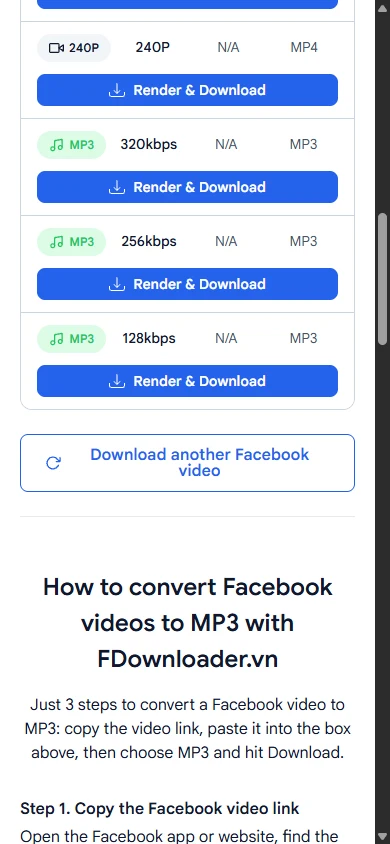
The audio rows usually come in three bit rates: 320kbps, 256kbps and 128kbps. Higher bit rates keep more of the sound detail and take more space. All of them use the Render & Download button, because the server extracts the sound track and writes it as an MP3 file before you save it.
The following table shows how the two formats differ for a saved Facebook video.
| Point | MP4 | MP3 |
|---|---|---|
| What you keep | Picture and sound | Sound only |
| File size | Larger | Much smaller |
| Plays in | Gallery, Photos, video players | Music apps, any audio player |
| Best for | Watching offline, sharing clips | Songs, speeches, lessons |
If audio is all you are after, a separate page lets you convert Facebook video to MP3 directly, with the same paste and download steps. For everything else, MP4 is the safer pick: you can always extract sound from a video later, but you cannot get the picture back from an MP3.
Whichever format you pick, keep in mind that the video belongs to the person who posted it. Save only videos you are allowed to watch, keep them for personal use, and ask the owner before you post them again anywhere.
Why won't a Facebook video save as MP4?
A Facebook video usually fails to save because the link is incomplete, the video is not public, or the render was interrupted. Copy the link again, check its privacy setting, and stay on the page until the progress bar finishes.
Can a private Facebook video be saved as MP4?
Yes, but not with the normal link box. When a video is set to Friends, Only me or a closed group, the tool shows the message "This video is private. Please use the tool" with a link to the private downloader. That page lets you download private Facebook videos through the page source: you paste the link, open the view-source address it gives you, copy the whole page and paste it back. This method works only on a Windows or Mac computer where your browser is already logged in to a Facebook account that can watch the video. You never type your Facebook password into FDownloader.vn. Phones are not supported for private videos yet, so use a computer.
Does saving as MP4 remove a watermark or lower the quality?
No on both counts. FDownloader.vn adds no watermark of its own, but it also does not remove a logo or text that is already burned into the original video. The MP4 keeps the resolution of the row you pick, so the result looks the same as that quality on Facebook.