To download a Facebook video on iPhone, copy the video link in the Facebook app, paste it into a Facebook video downloader page in Safari or Chrome, pick a quality and tap Download. The MP4 file saves to the Files app, and you can then move it to Photos.
Specifically, the whole job runs through a web page, so there is nothing to install from the App Store and no Shortcut to set up. You open the Facebook video downloader on FDownloader.vn, paste the link into the box and tap the blue Download button. FDownloader.vn does not ask for your Facebook login, sets no download limit and does not keep the videos you save.
Once the download finishes, the video sits in the Downloads folder of the Files app when you use Safari, or in the Files location you pick when you use Chrome. From there, a single Share action copies it into the Photos app, where it plays like any clip you recorded yourself.
Below, each step is explained in the order you will do it, from copying the link to finding the file. After that, the guide covers which quality to tap on an iPhone screen, which kinds of Facebook videos can be saved this way and what to do when a video refuses to download.
How do you download a Facebook video on iPhone?
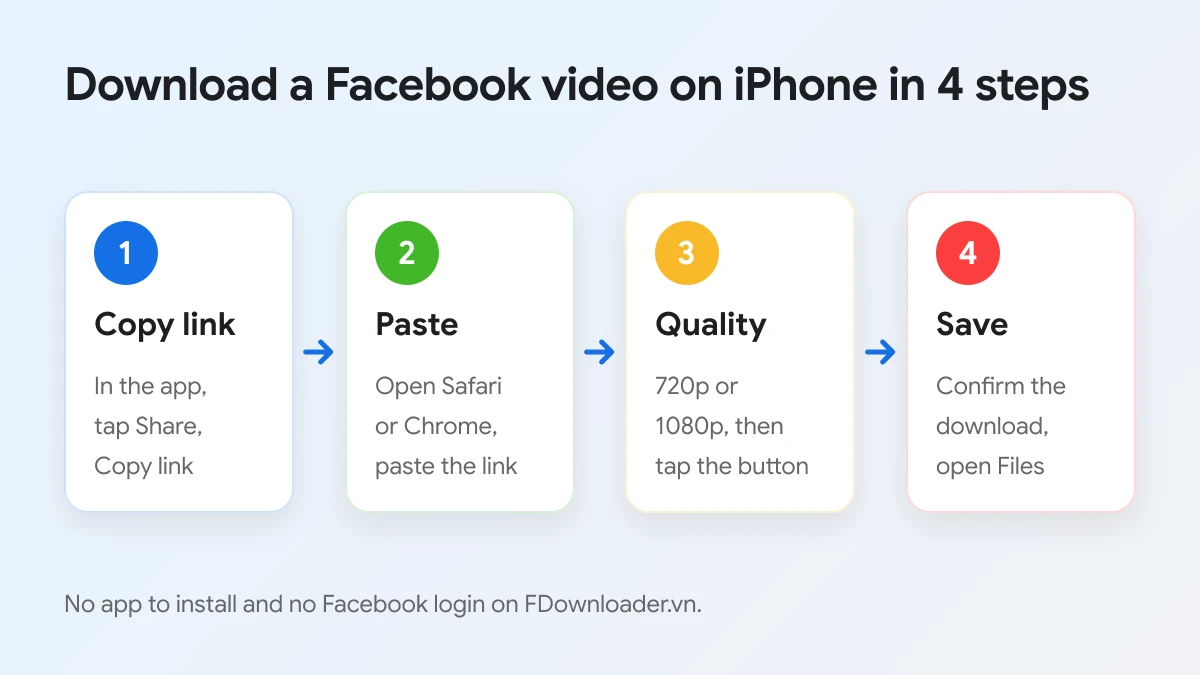
You download a Facebook video on iPhone in 4 steps: copy the link in the Facebook app, paste it on FDownloader.vn in Safari or Chrome, choose a quality, then confirm the download so the MP4 lands in Files.
To begin, the picture below sums up the 4 steps. Each step takes a few taps, and the full process usually finishes in well under a minute for a short clip.
The method works because a downloader only needs the address of the video. FDownloader.vn's server uses the link you paste to fetch the original video file from Facebook, then shows you every quality that file contains. Your iPhone simply receives the finished MP4, the same way it receives any other file from a website.
Step 1: Copy the video link in the Facebook app
You copy the link by opening the video in the Facebook app, tapping the Share button and choosing Copy link. The link is then on your iPhone clipboard, ready to paste.
In detail, the Share button sits under a regular post and on the right side of a reel. On a Facebook Watch video it appears under the player. If the menu shows several rows of apps first, scroll the lower row until Copy link appears.
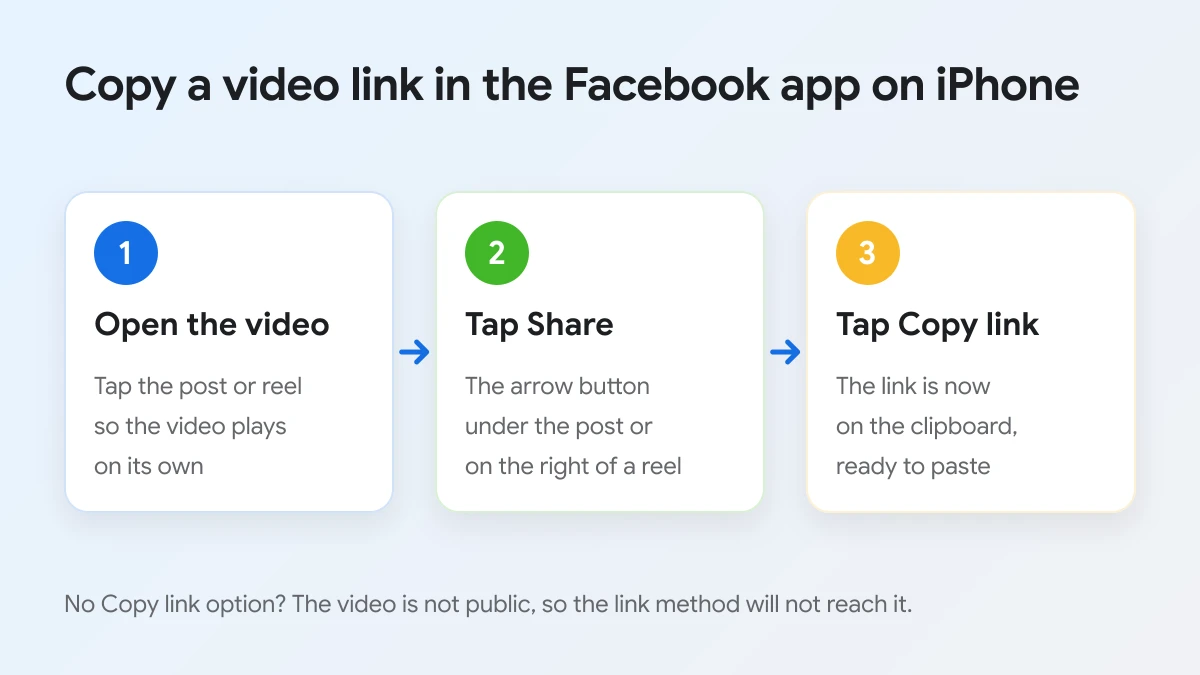
If you watch Facebook in Safari instead of the app, open the video so it plays on its own page, then tap the address bar and copy the full address. Both kinds of link work. A link copied with extra text, such as a caption, should be trimmed so only the address stays.
Step 2: Paste the link on FDownloader.vn in Safari or Chrome
You paste the link by opening FDownloader.vn in Safari or Chrome, tapping the Paste button inside the box that says "Paste your Facebook video link here..." and then tapping Download.
Once the link is in place, the Paste button turns into Clear, which empties the box if you pasted the wrong address. iOS may show a small prompt asking you to allow the paste; tap it to continue. You can also press and hold inside the box and choose Paste from the menu.
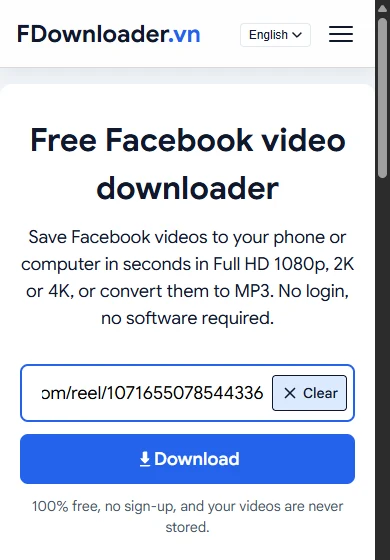
Under the button, the page reminds you that the service is 100% free, needs no sign-up and never stores your videos. After you tap Download, the server reads the link for a few seconds and then builds a list of the available files.
Step 3: Pick a quality and tap the download button
You pick a quality by tapping the button next to it in the result list: green "Download now" for 720P and 360P, blue "Render & Download" for 1080P and the other qualities.
The list opens with the title "Facebook Video", the length of the clip and a yellow note explaining that FHD, 2K and 4K files need rendering, which means merging the video and audio tracks, so they take a little longer. The qualities shown always depend on the original upload. A clip filmed in 4K can show 2K and 4K rows, while an older or smaller upload may stop at 720P.
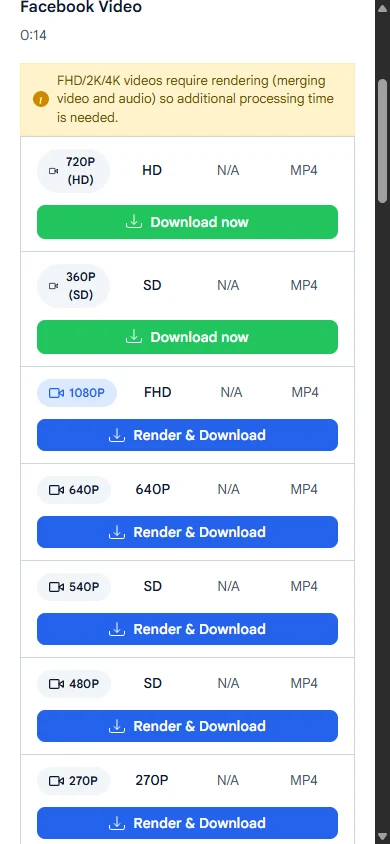
When you tap Render & Download, a progress bar replaces the button while the file is prepared. As soon as it reaches the end, a green Download now button appears in the same row, and you tap it to receive the finished file.
Step 4: Confirm the download in Safari or Chrome
You confirm the download by choosing Download when Safari asks what to do with the file, or by choosing Files when Chrome asks where to save it. The video then starts copying to your iPhone.
Next, Safari shows a Downloads icon beside the address bar while the file transfers. Tapping that icon opens the list of recent downloads, and tapping the video there opens it straight away. Chrome on iPhone works through a save sheet, so the file goes to whichever Files folder you select.
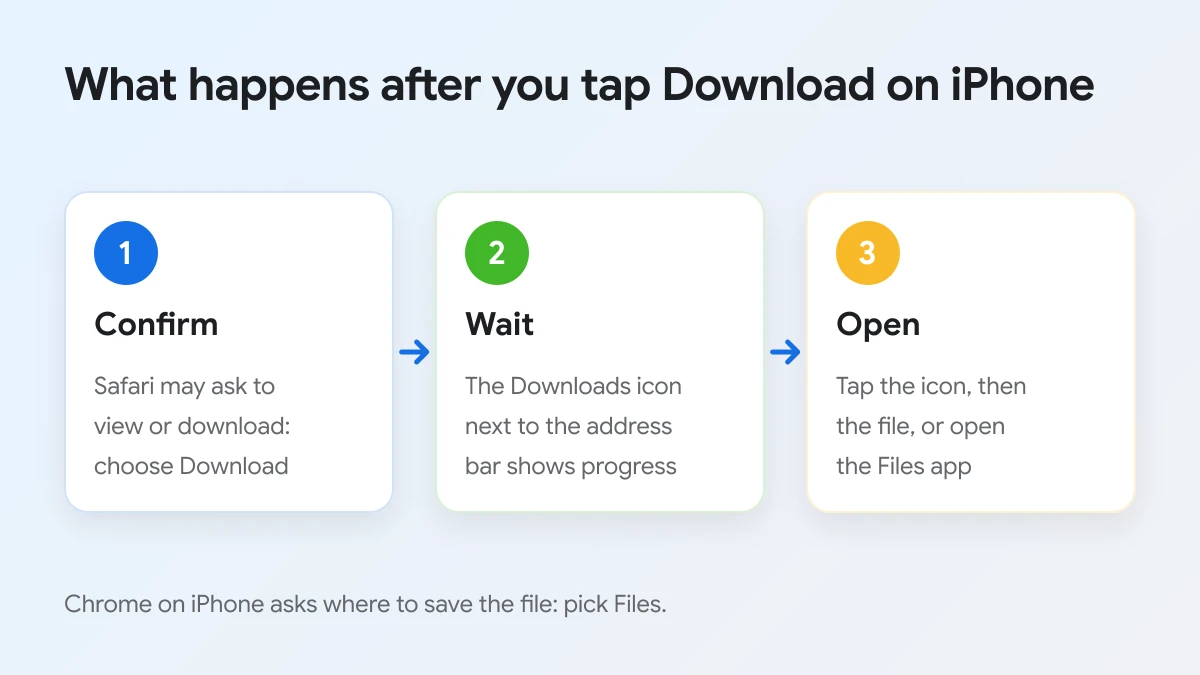
Keep the browser open until the transfer ends, especially for a long 1080P video on mobile data. If you switch apps too early, iOS may pause the download, and you will need to tap the button again.
Can you download Facebook videos on iPhone without installing an app?
Yes, you can download Facebook videos on iPhone without installing an app, because Safari and Chrome can save files from a website, the Files app stores them, and a downloader page needs nothing more than the video link.
In other words, the browser and the system apps already cover every part of the job. Here are the main reasons the no-app route is the simplest one for most people:
- Nothing to install or update. You use Safari, which ships with every iPhone, or Chrome if you prefer it. There is no new app asking for access to your photos, contacts or Facebook account.
- No Facebook login on the downloader. FDownloader.vn reads public videos from the link alone, so you never type your Facebook password into a third party page.
- No Shortcut setup. Some guides rely on custom Shortcuts plus extra helper apps. Those can stop working after Facebook or iOS changes and are harder to troubleshoot than a page with one box and one button.
- No download limit and no watermark. FDownloader.vn does not cap how many videos you save and does not stamp its name on the file.
Screen recording is the other app-free option, since iOS includes a recorder in Control Center. However, a recording captures whatever appears on screen, including buttons, notifications and lower picture quality, and you must play the whole video in real time. Saving the original file from the link is faster and keeps the quality the uploader chose.
The same reasoning applies to an iPad. Safari and Chrome on iPadOS save files to the Files app in the same way, and the larger screen makes the result list easier to read, so every step in this guide carries over without changes.
Using the browser also keeps your iPhone tidy. Each download is a single MP4 file that you can open, move or delete like any document, and nothing keeps running in the background once you close the tab. If you only save a video now and then, this is far lighter than keeping a dedicated app on your Home Screen for a task you do a few times a month.
Because FDownloader.vn has no app of its own, any app in the App Store that uses a similar name is not connected to this site. The web page is the only official way to use the service.
Where does the downloaded Facebook video go on iPhone?
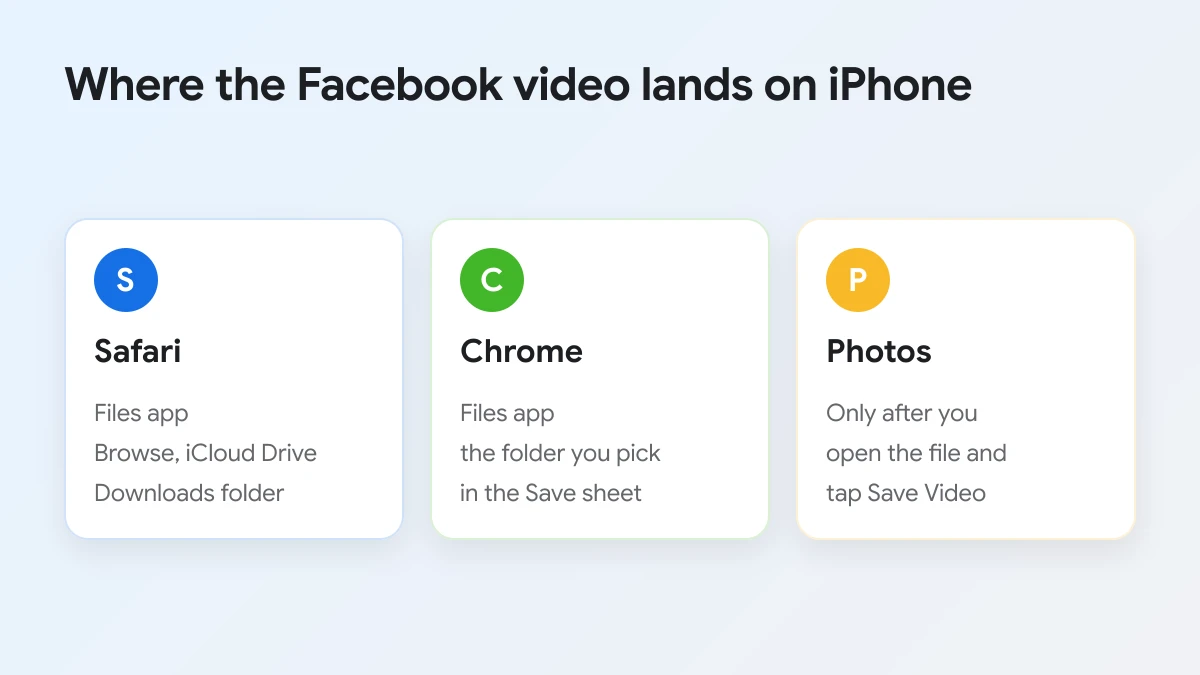
The downloaded Facebook video goes to the Downloads folder in the Files app when you use Safari, and to the Files folder you choose in the save sheet when you use Chrome. It does not appear in Photos automatically.
To find it, the path depends on the browser you used. The picture below compares the two browsers and shows when the video reaches Photos.
Safari downloads in the Files app
Safari saves the video in the Downloads folder of the Files app. Open Files, tap the Browse tab, tap iCloud Drive, then tap Downloads to see the MP4 you just saved.
Apple describes the same path in its support article on finding downloads on iPhone and iPad. If you do not see the Files icon on your Home Screen, swipe down from the middle of the Home Screen and search for Files. You can also skip the Files app entirely: tap the Downloads icon next to the Safari address bar, then tap Downloads to open the list of saved files.
The Downloads folder may live on your iPhone instead of iCloud Drive if you changed that setting earlier. In that case, look under On My iPhone in the Browse tab. The file name starts with FDownloader.vn followed by a short code and usually the quality you picked, which helps when you saved the same video more than once.
Chrome downloads on iPhone
Chrome on iPhone saves the video in the Files app too, but it asks you first. After the download, Chrome shows a save sheet; choose Files and pick a folder, and the video stays there.
For example, many people pick On My iPhone and a folder named after Chrome, while others choose the iCloud Drive Downloads folder so every download sits in one place. Whatever you choose, remember the folder name, because Chrome does not move the file anywhere else afterwards. If you skip the save sheet, open Chrome's menu and look in its Downloads list to reopen the file.
If you need a deeper look at storage locations, including Android, see this explainer on where saved Facebook videos end up on Android and iPhone.
How do you move a Facebook video from Files to Photos on iPhone?
You move a Facebook video from Files to Photos by opening the MP4 in the Files app, tapping the Share button and choosing Save Video. The clip then appears in the Recents album of Photos.
In practice, the three taps look like this:
- Open Files, go to the folder that holds the download and tap the MP4 so it plays.
- Tap the Share button, the square with an arrow pointing up, at the bottom of the screen.
- Scroll the share sheet and tap Save Video.
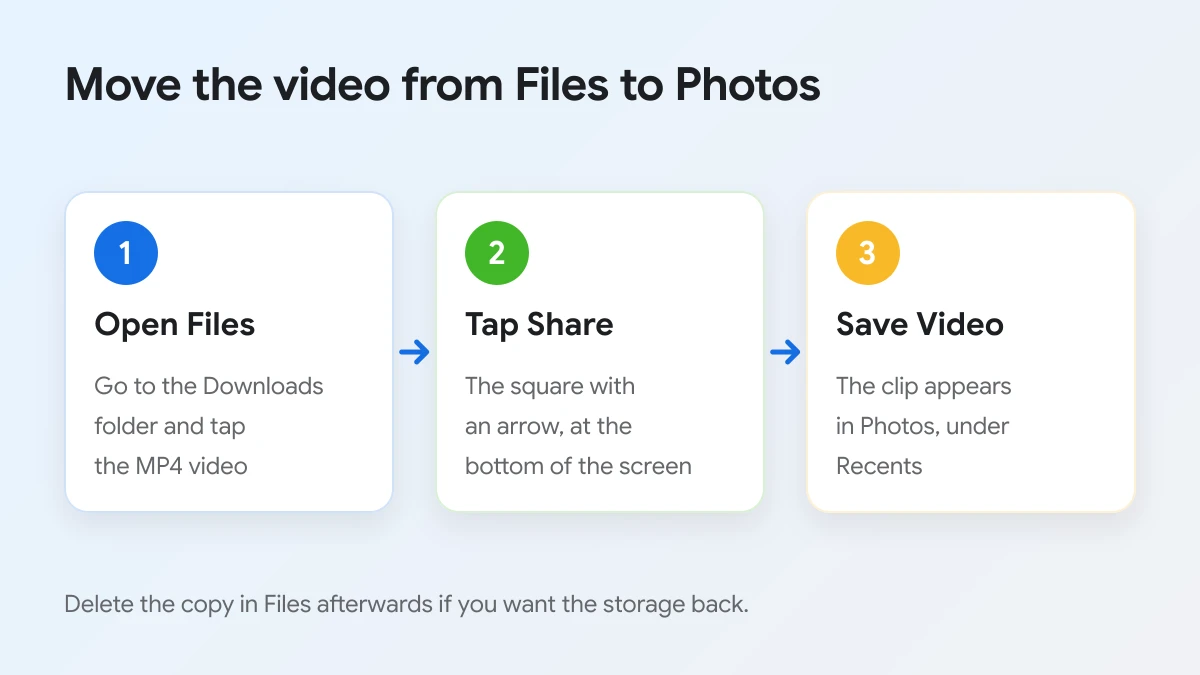
After that, open Photos and check Recents, where the new clip sits at the bottom. From there you can trim it, add it to an album or share it in Messages like any other video. Saving to Photos makes a copy, so the original MP4 stays in Files until you delete it. Removing the Files copy frees the space it takes, which matters for 1080P or longer videos.
If Save Video does not appear in the share sheet, the file may still be downloading or may have saved with an unusual format. Wait for the transfer to finish, then try again. The MP4 files from FDownloader.vn use common video and audio formats that Photos plays without conversion in normal cases.
Which video quality should you choose on iPhone?
720P (HD) is the best default on iPhone because it saves instantly and looks sharp on a phone screen, while 1080P and higher suit large screens and 360P suits a slow or limited data plan.
To decide quickly, the table below compares the options you will see in the result list, the button each one uses and the situation it fits best.
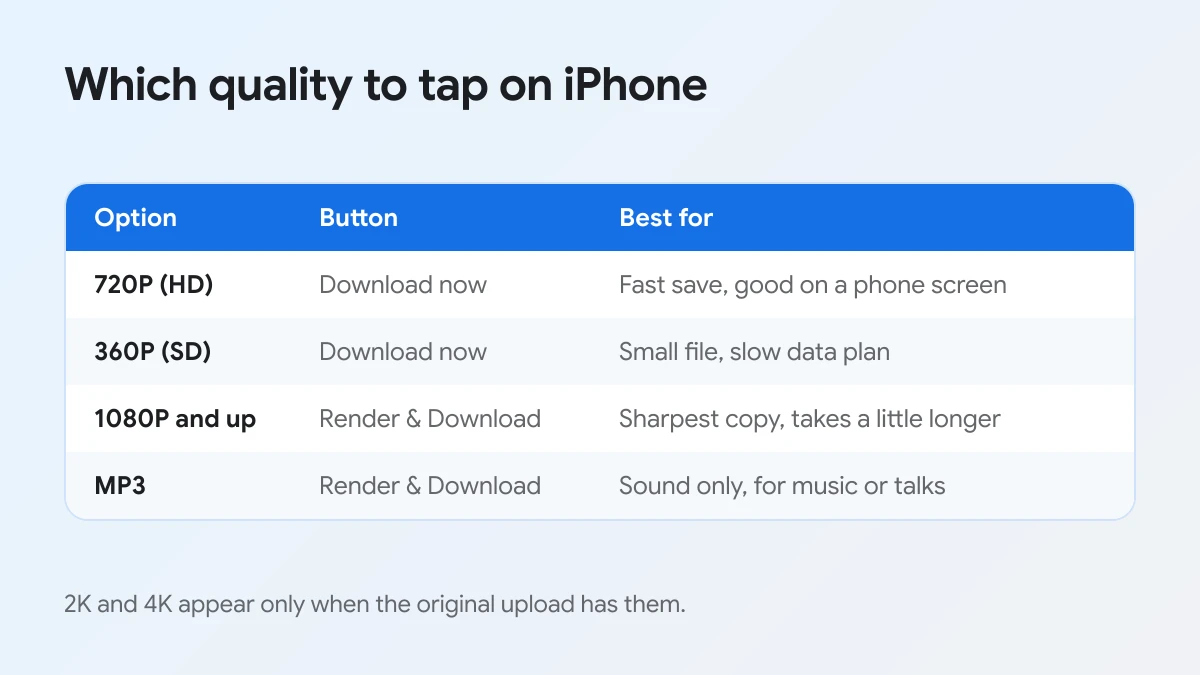
Here is the same comparison in text form, based on the buttons shown on FDownloader.vn:
| Option | Button | Best for |
|---|---|---|
| 720P (HD) | Download now | Fast save, good detail on a phone screen |
| 360P (SD) | Download now | Smallest file, slow connection or low storage |
| 1080P (FHD), 2K, 4K | Render & Download | Sharpest copy for a TV, iPad or computer |
| MP3 320kbps, 256kbps, 128kbps | Render & Download | Sound only, such as music or a talk |
Beyond picture detail, file size is the main trade off. A higher quality means a larger file, more storage used in Files and Photos, and a longer transfer on mobile data. 2K and 4K appear only when the person who posted the video uploaded it in that quality, so a missing 4K row is not an error.
The intermediate rows, such as 640P, 540P, 480P, 270P and 240P, exist for the same reason: Facebook keeps several versions of each upload. Pick one of them when you need a specific size, for example to send the clip through an app that limits attachments.
Which Facebook videos can you download on iPhone?
There are 3 groups of Facebook videos to consider on iPhone: public videos and reels, which work with the link method; public stories, which use the Story tool; and private videos, which need a computer.
To be clear, the deciding factor is who can watch the video, not which device you use. The picture below shows the three groups.
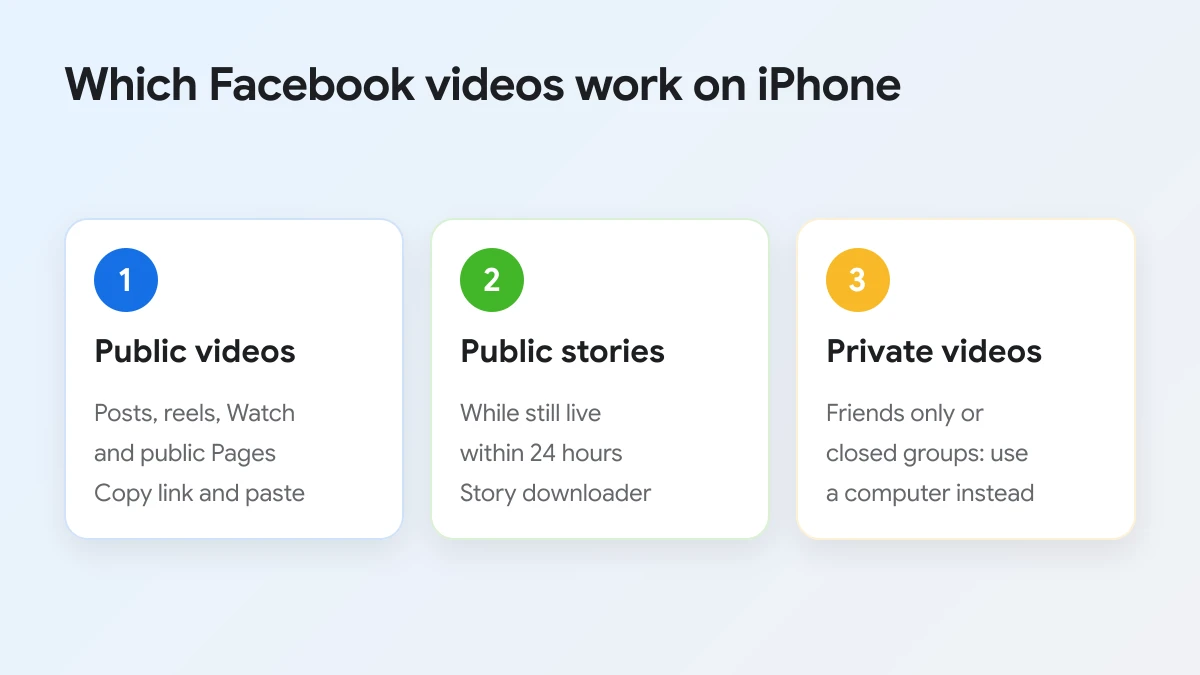
- Public videos and reels. Regular posts, reels, Facebook Watch videos, videos on public Pages and public groups, and finished live streams all work with the 4 steps above.
- Public stories. A story disappears after 24 hours, and it uses a different link. To save one while it is still visible, use the page to download Facebook Stories, which follows the same paste and download pattern.
- Private and closed group videos. Videos set to Friends, Only me or posted inside a private group cannot be reached from the link alone. FDownloader.vn handles them with a page source method that only works on a computer, so this kind of download is not supported on iPhone. Switch to a Windows PC or a Mac and use the tool to download private Facebook videos; the guide to downloading Facebook videos on a PC or Mac walks through the desktop steps.
Whatever the group, only save videos you are allowed to watch, keep them for personal use and ask the creator before you post them anywhere else.
What else should iPhone users know about saving Facebook videos?
Why does a Facebook video fail to download on iPhone?
A Facebook video usually fails to download on iPhone because the link is incomplete, the video is not public, or the connection dropped during the transfer.
First, copy the link again from the Share button and paste it fresh, since a cut off address is the most common cause. Then open the video in Safari without signing in; if Facebook asks you to log in to see it, the video is not public. Finally, retry on Wi-Fi and keep Safari in front until the file finishes. If it still fails, write to the team through the contact page with the link you used.
Can you save only the audio of a Facebook video on iPhone?
Yes. The result list includes MP3 rows at 320kbps, 256kbps and 128kbps, and the MP3 file saves to Files just like a video. For audio only jobs, you can also use the page built to convert Facebook video to MP3. An MP3 stays in Files, because Photos only stores pictures and videos.